 MABEL
MABEL
MABEL
MABEL
Drive MABEL three ways — a browser console you can try right now, an iPhone in your pocket, and an Apple Vision Pro you reach through. All three speak one wire protocol to the same bridge, and point at the MuJoCo twin or the real robot with no change. Every session is also a training demo.
Three views — Teleop, Body, Navigate — over one robot. Press Connect to reach a live bridge; with none reachable, an in-browser kinematic twin keeps every control live. Same teleop_frame protocol as the iPhone and Vision Pro apps.
Joysticks, body control, and navigation over a live MuJoCo simulation — the same wire protocol as the iPhone and Vision Pro apps. The hosted sim may be offline; either way the controls stay live on the in-browser model.
Individual household tasks from the video submission. Sony footage; speeds are marked. These clips show human teleoperation.
The console above is the simple one. The Control Studio is the full cockpit the robot serves for real sessions — one workspace around a 3D viewer: drive, task and joint control, a timeline, the dock, and all 59 coordinates live. Slide through it below.
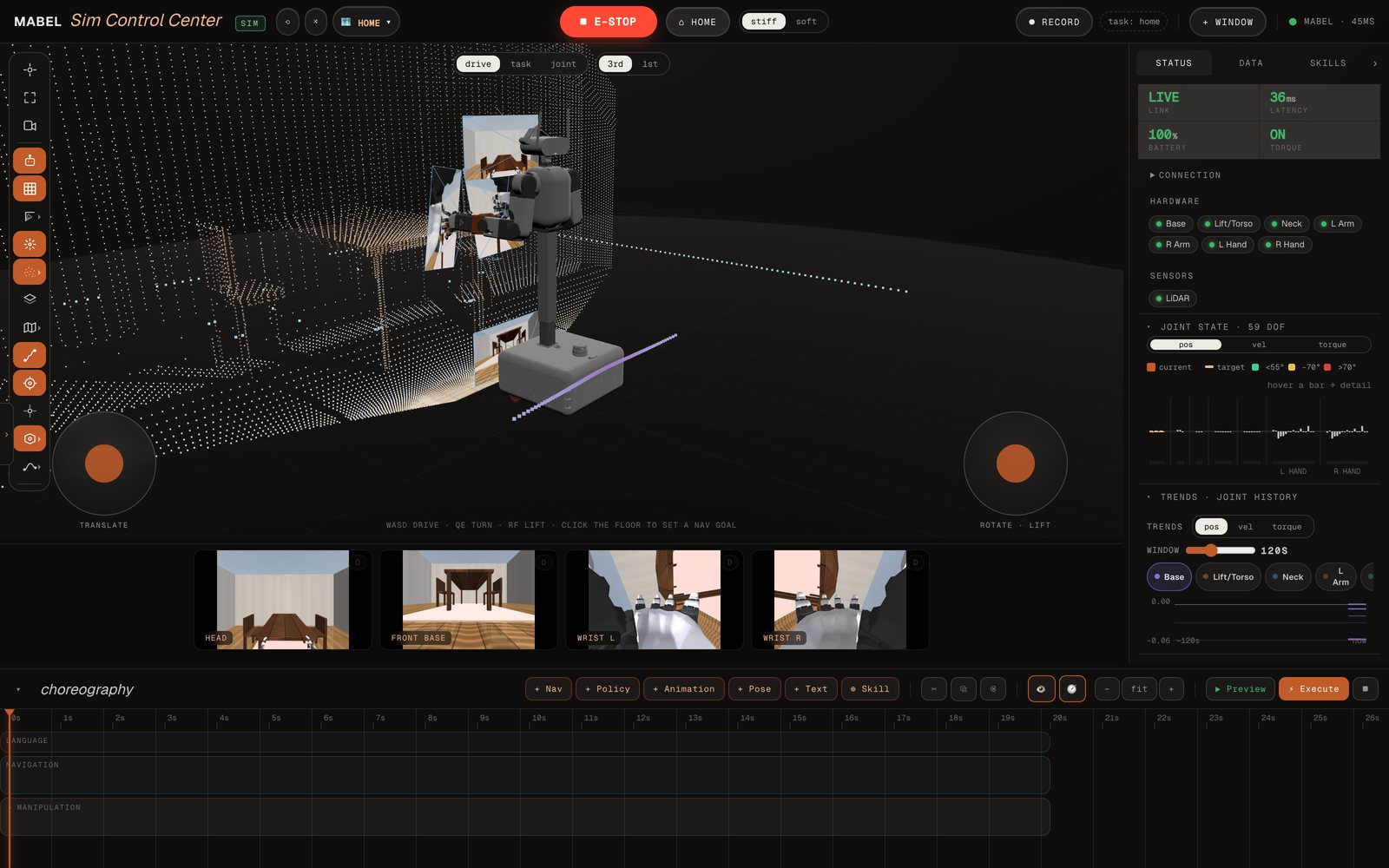
The whole cockpit is one workspace around a live 3D twin, with the map, point cloud, LiDAR and cameras all in place.
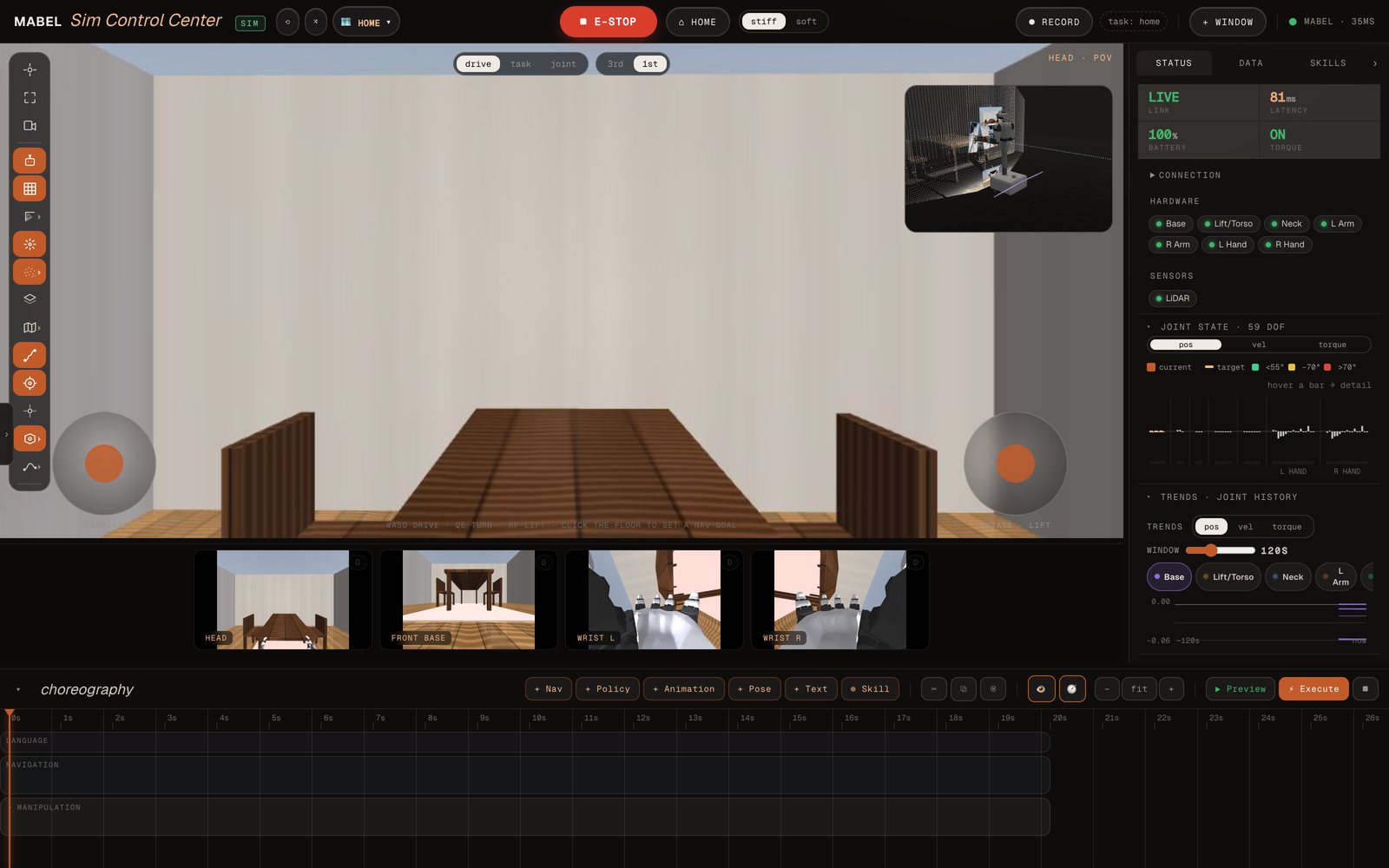
First person from the head camera, with the twin tucked in a corner. Keyboard or on-screen sticks.
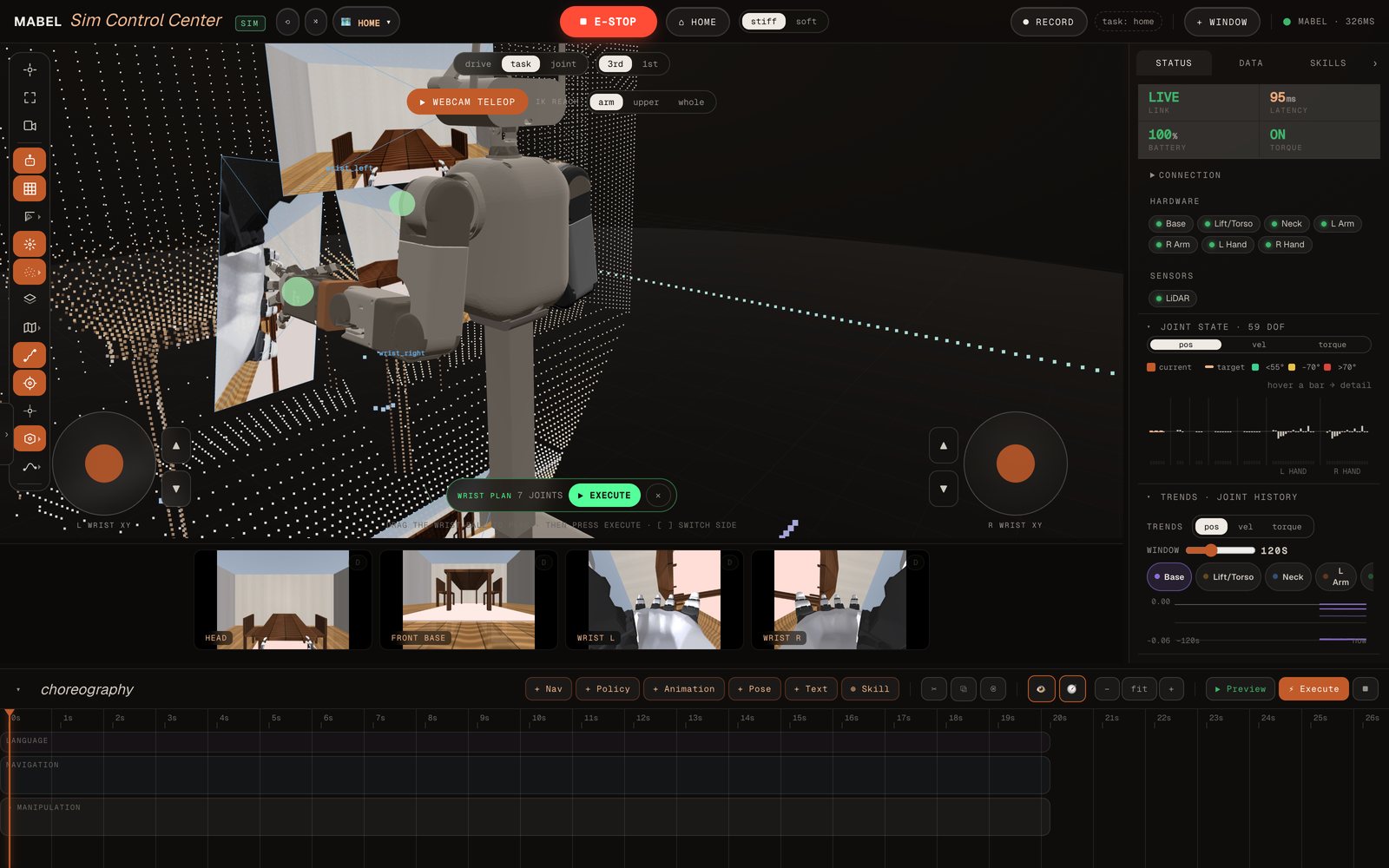
Drag a target; the planner previews the arm on the twin, and nothing moves until you press Execute.
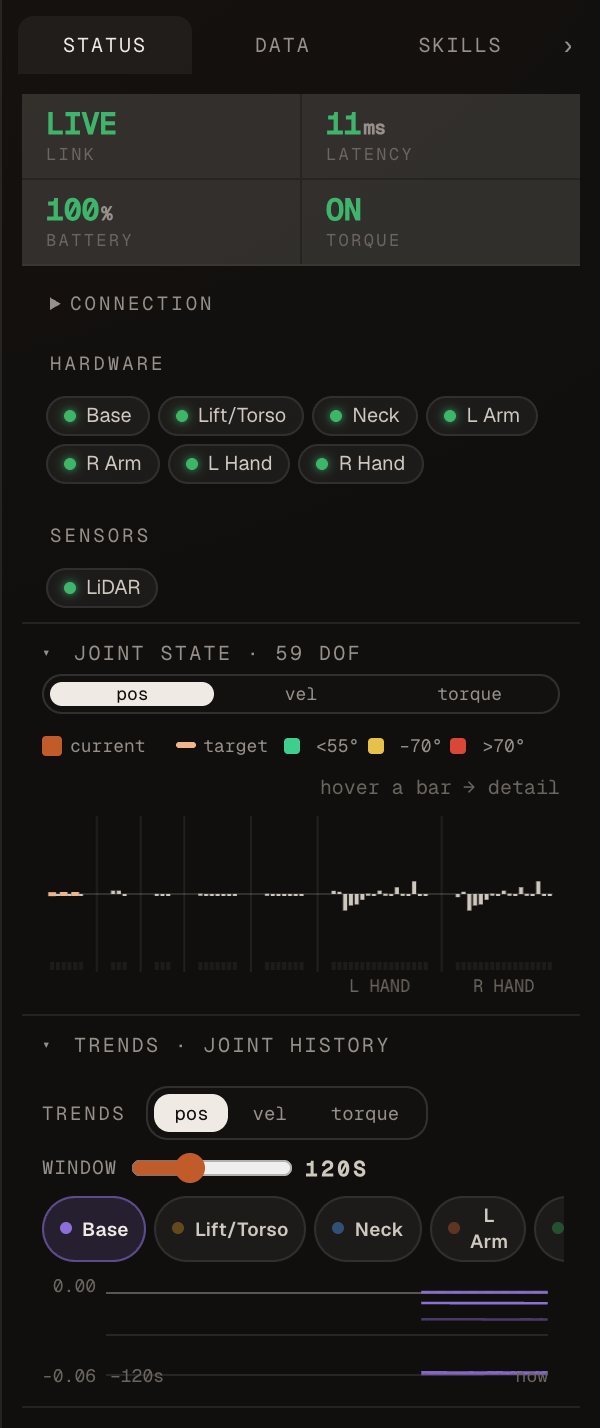
The right-hand dock: robot health on top, then all 59 coordinates and their history.
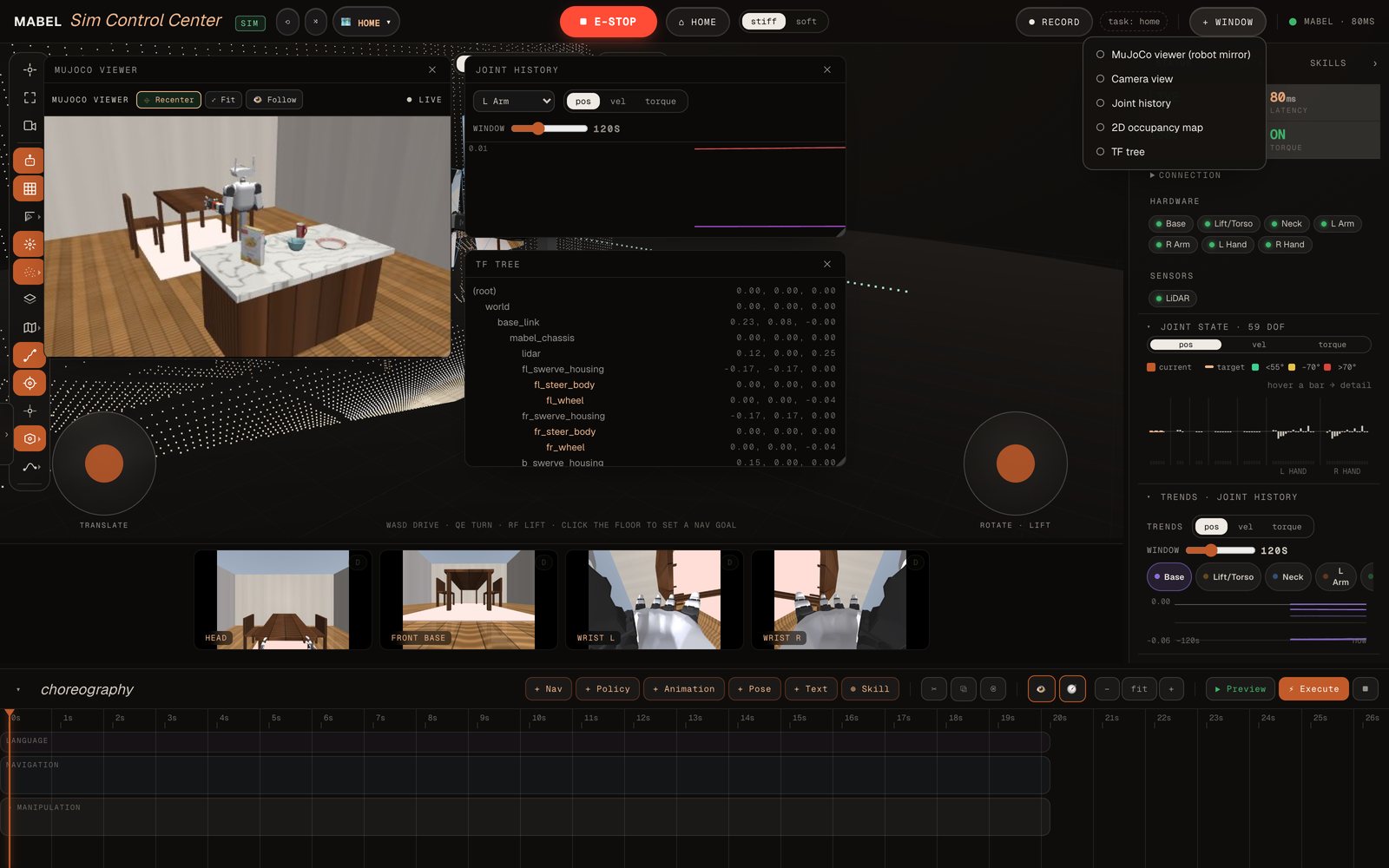
+ Window floats extra views over the twin; drag and resize them anywhere.
Three tabs as glass: Robot, Autonomy, Settings. Step into full immersion and MABEL’s stereo view wraps around you while your own arms, torso and fingers drive its. Slide through what each one does.
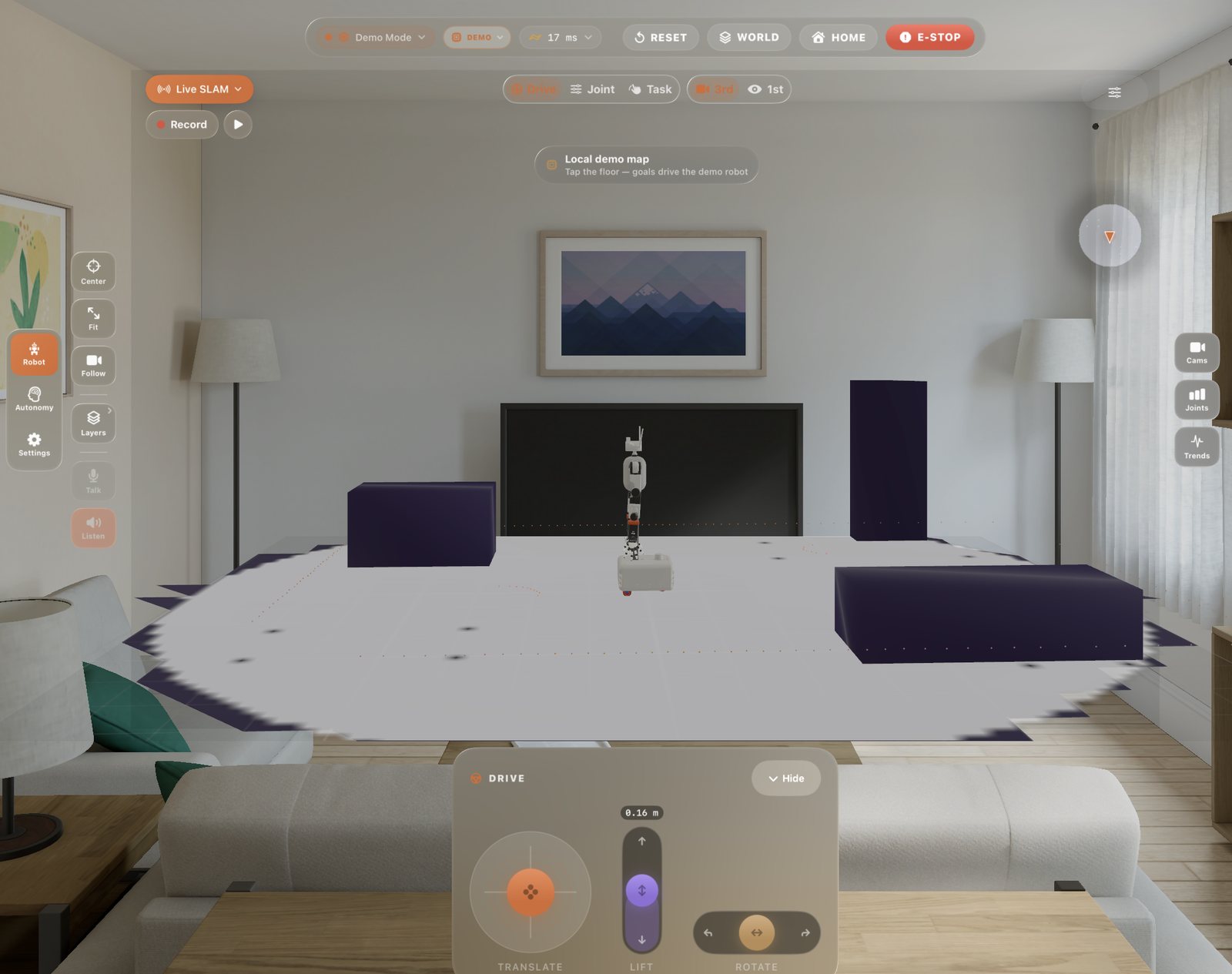
The Robot tab is one glass window: the live twin standing in its map, with the drive pad hanging underneath.
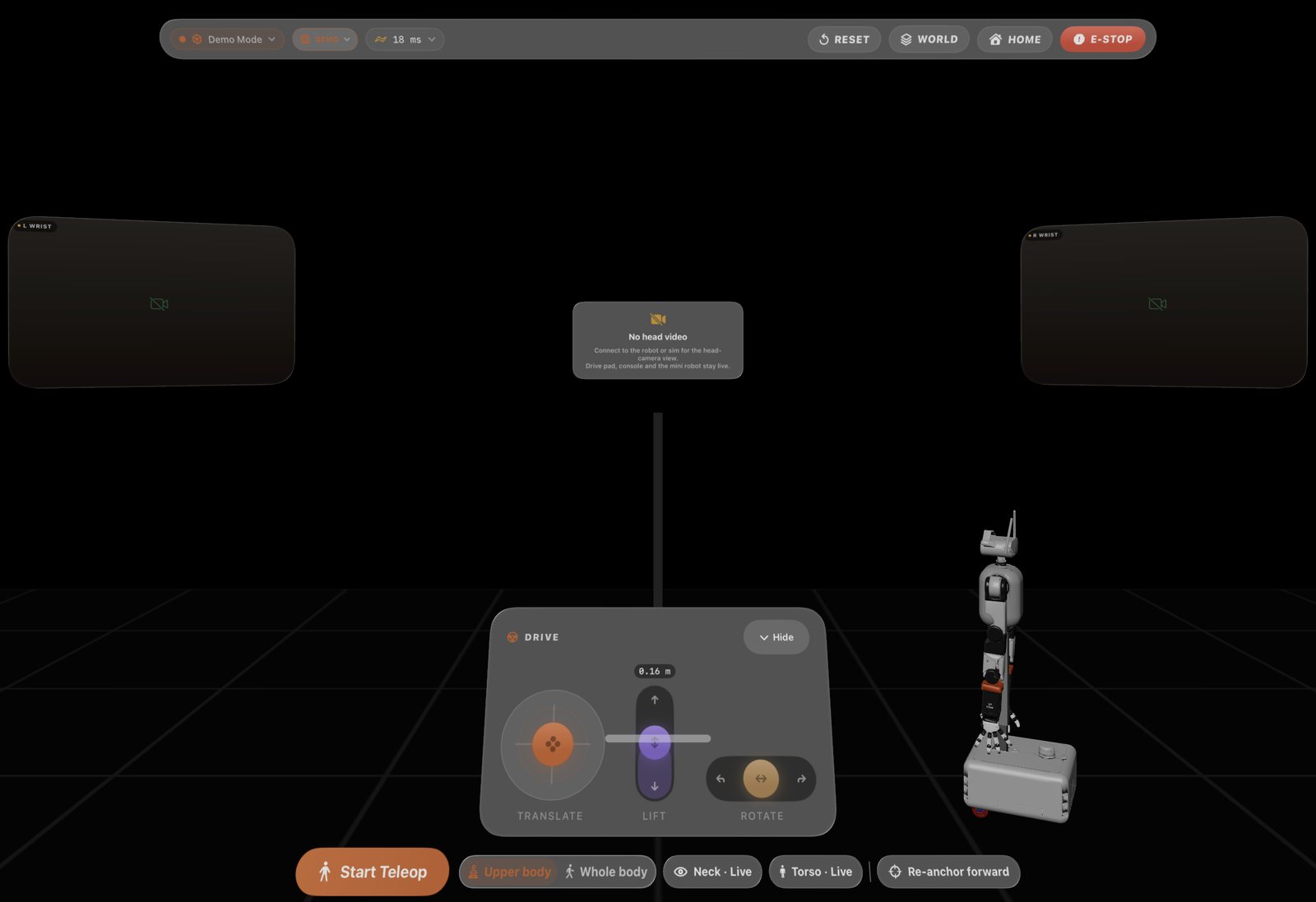
Full immersion puts you behind its eyes and maps your arms, torso and fingers onto its own.
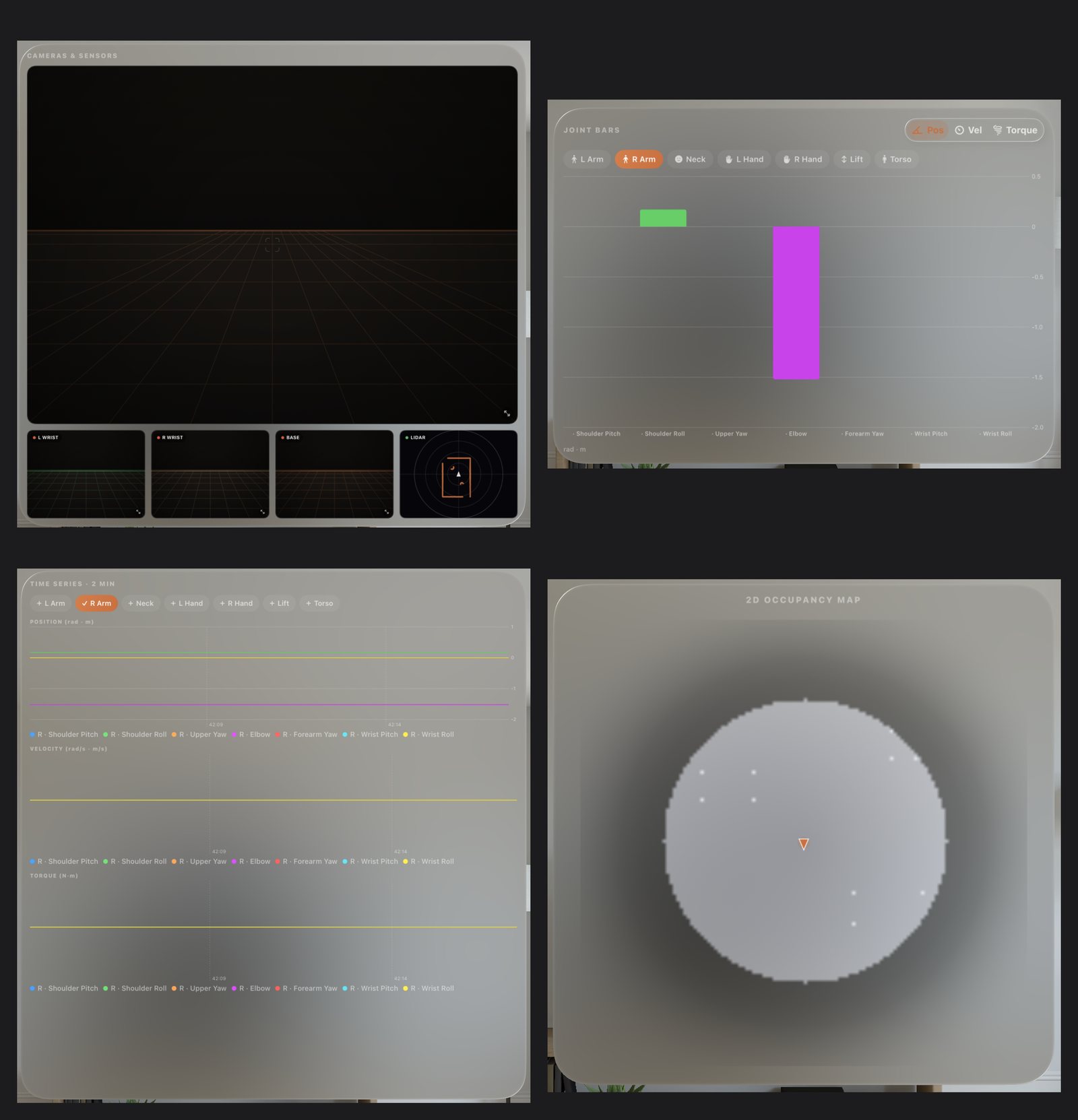
Any panel leaves the main window and floats where you want it. Four of them, side by side.
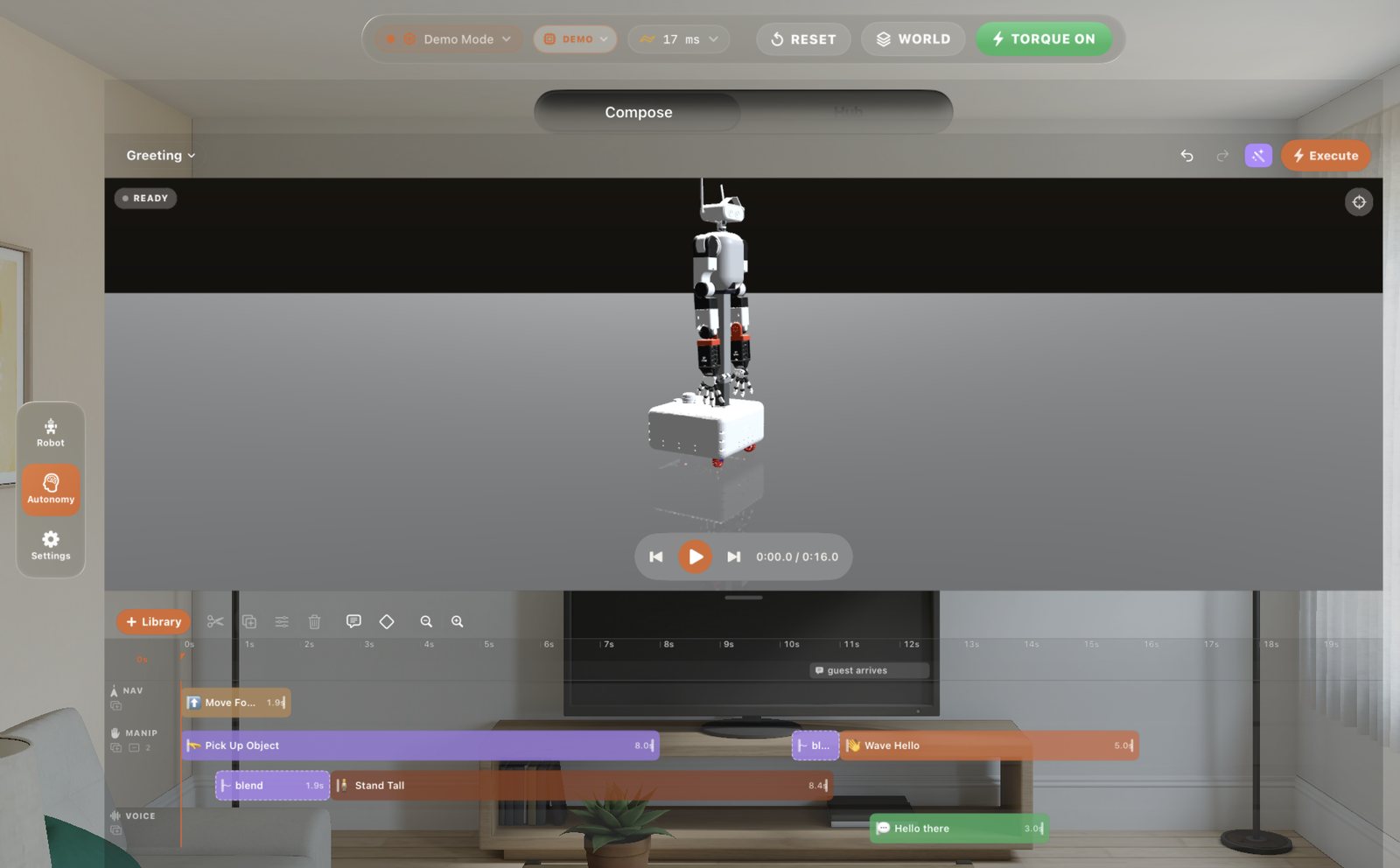
Clips on lanes, previewed on the twin before anything moves. Hub holds the assistant, automations and skills.
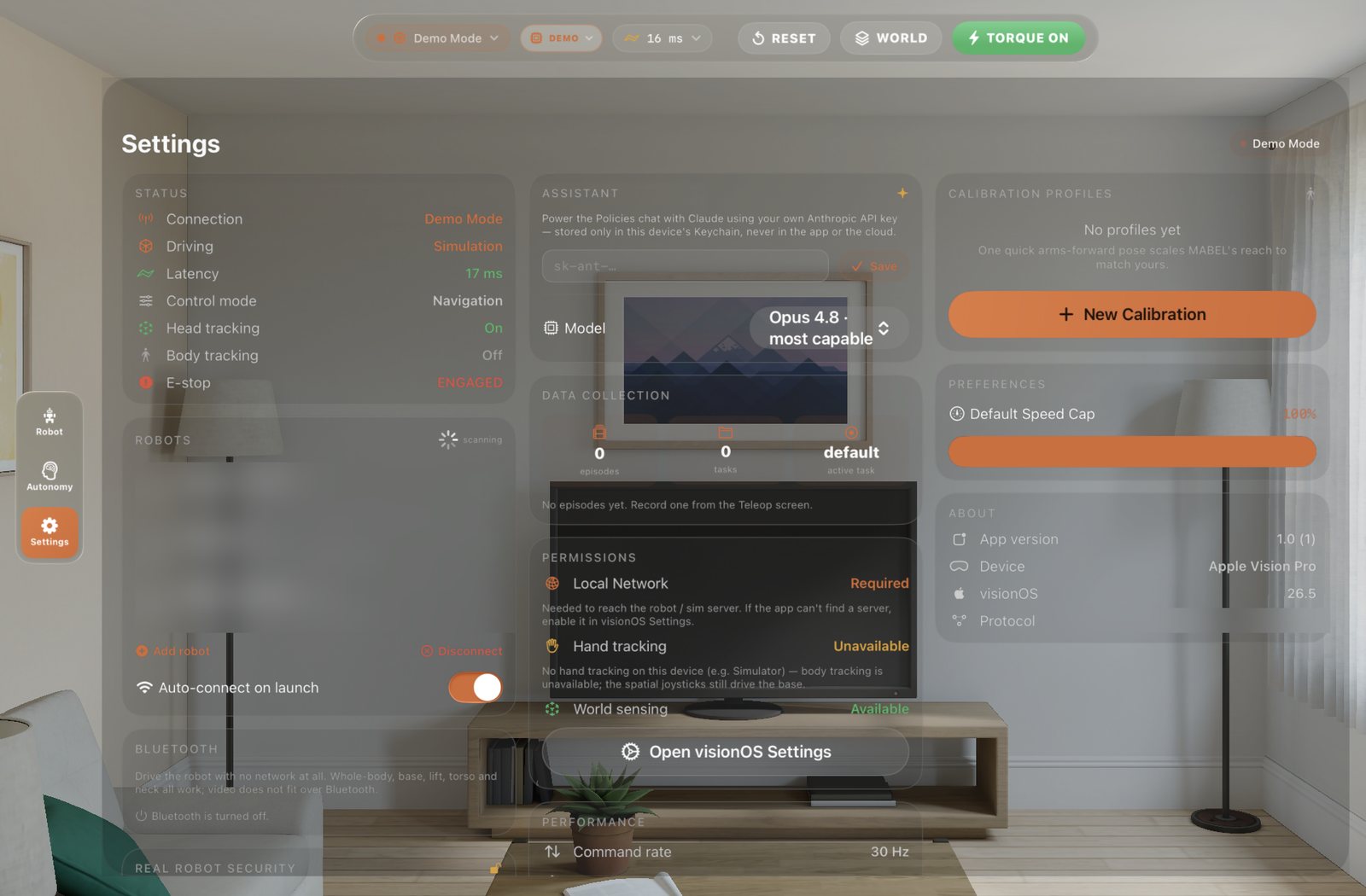
Connection, safety and limits, plus one card the phone does not need: calibration.
Three tabs, one thumb: Robot, Autonomy, Settings. It finds MABEL on Wi-Fi, Bluetooth or the secure relay, and falls back to an on-device demo robot, so every control works with no robot in the room. Slide through what each one does.
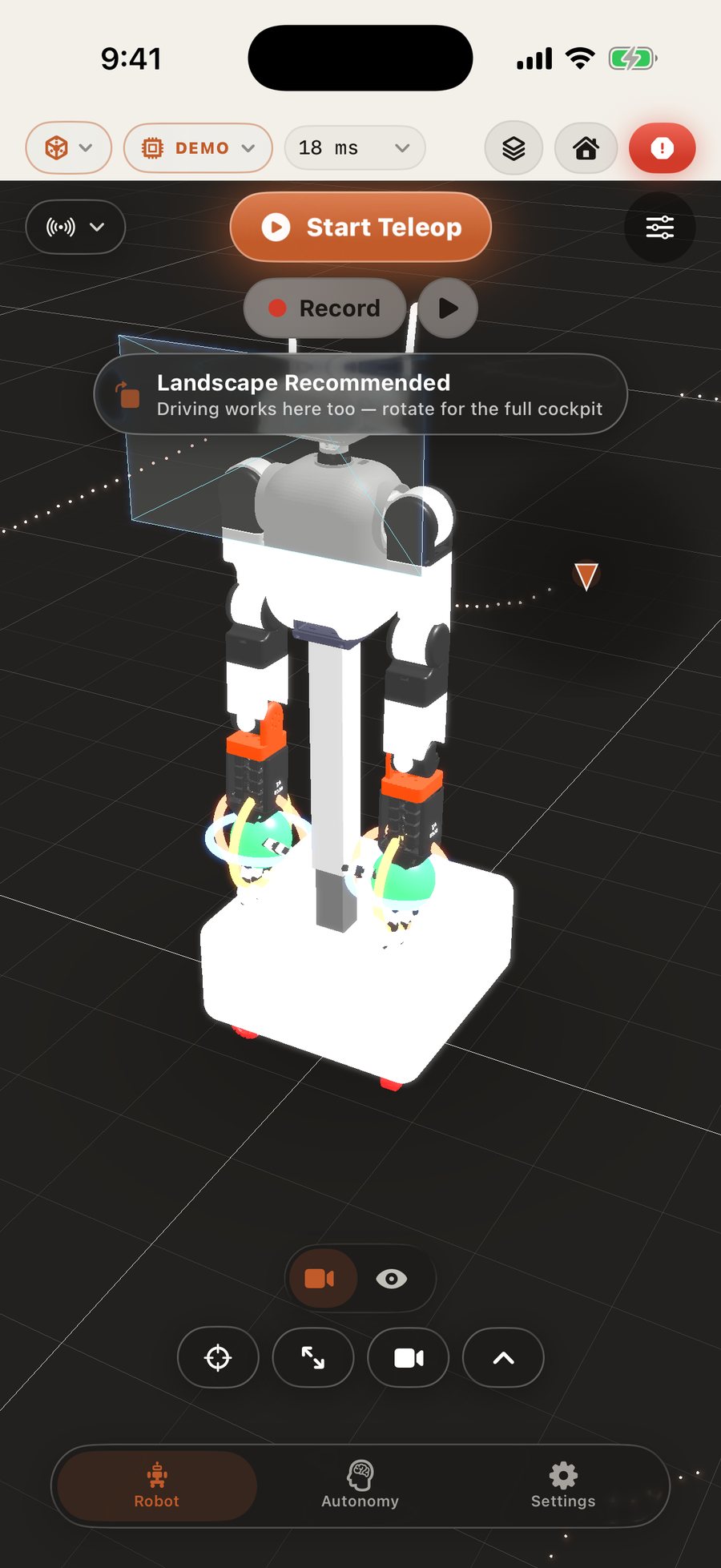
One full-screen 3D twin is both the live map and the controller.
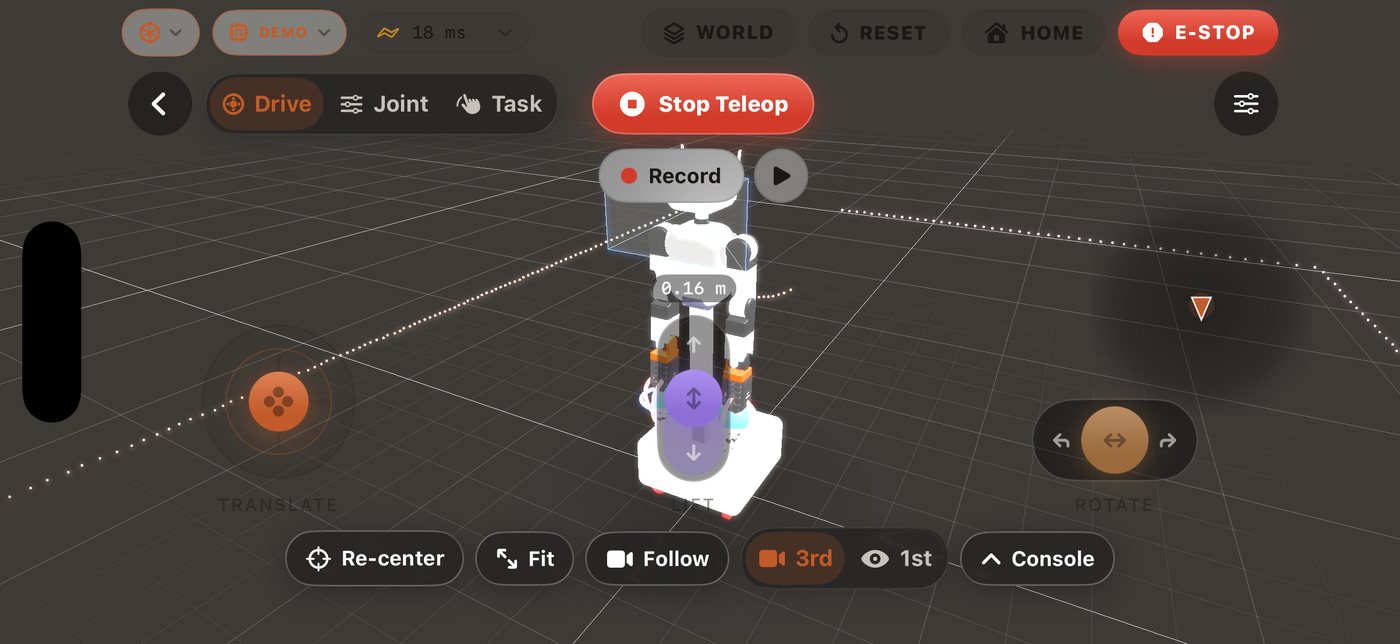
Turn the phone sideways and the controls spread out. Portrait works too.
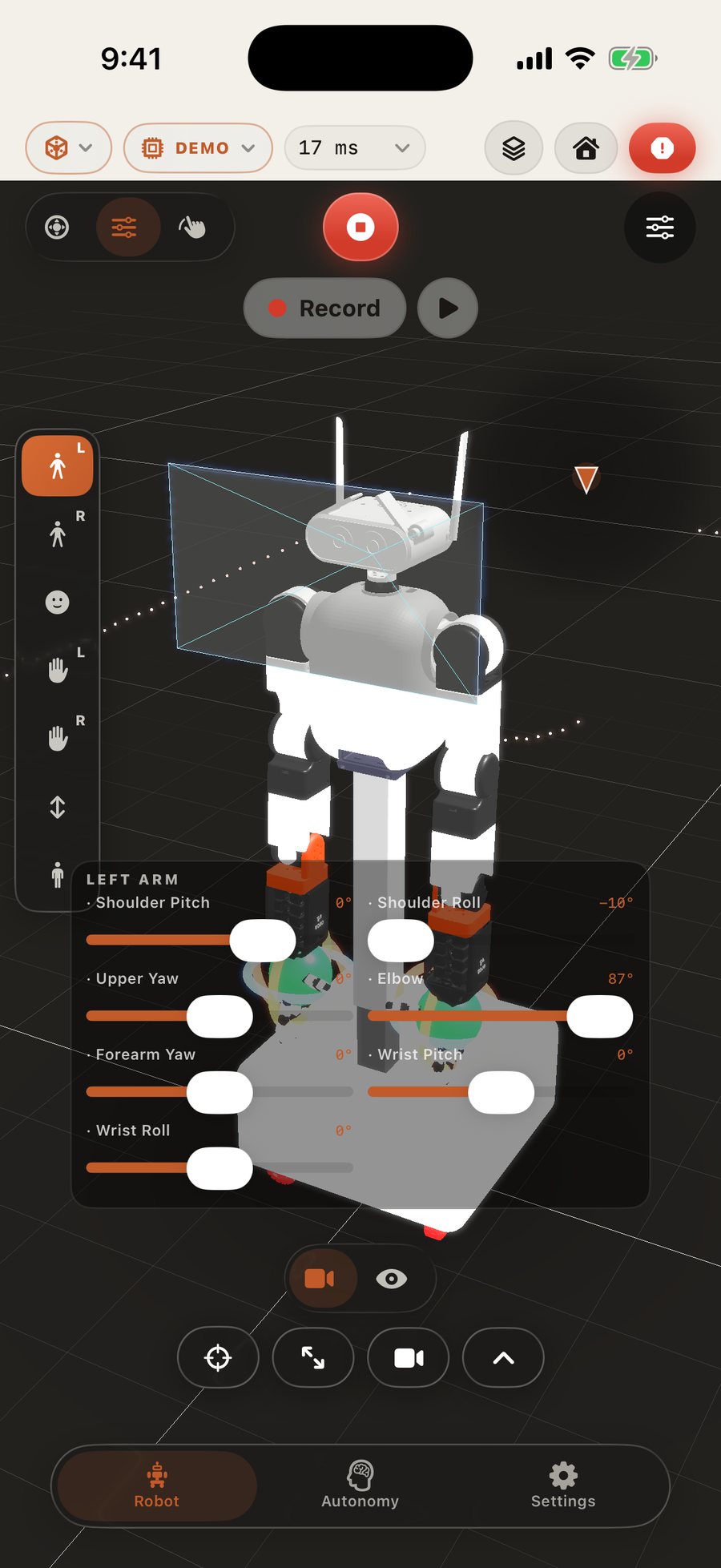
Pick a body part, then set each joint with a slider.
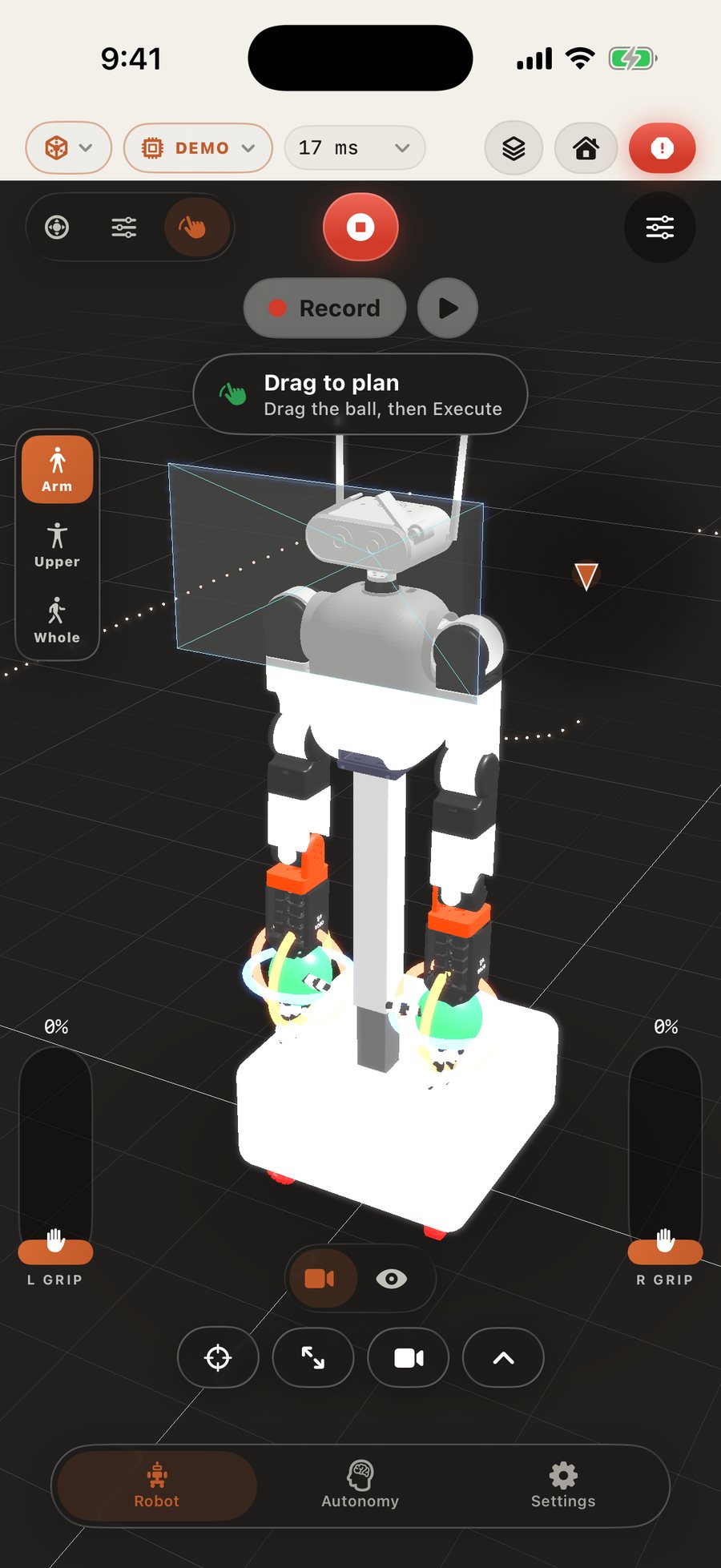
Drag a target; the planner solves the rest of the body.
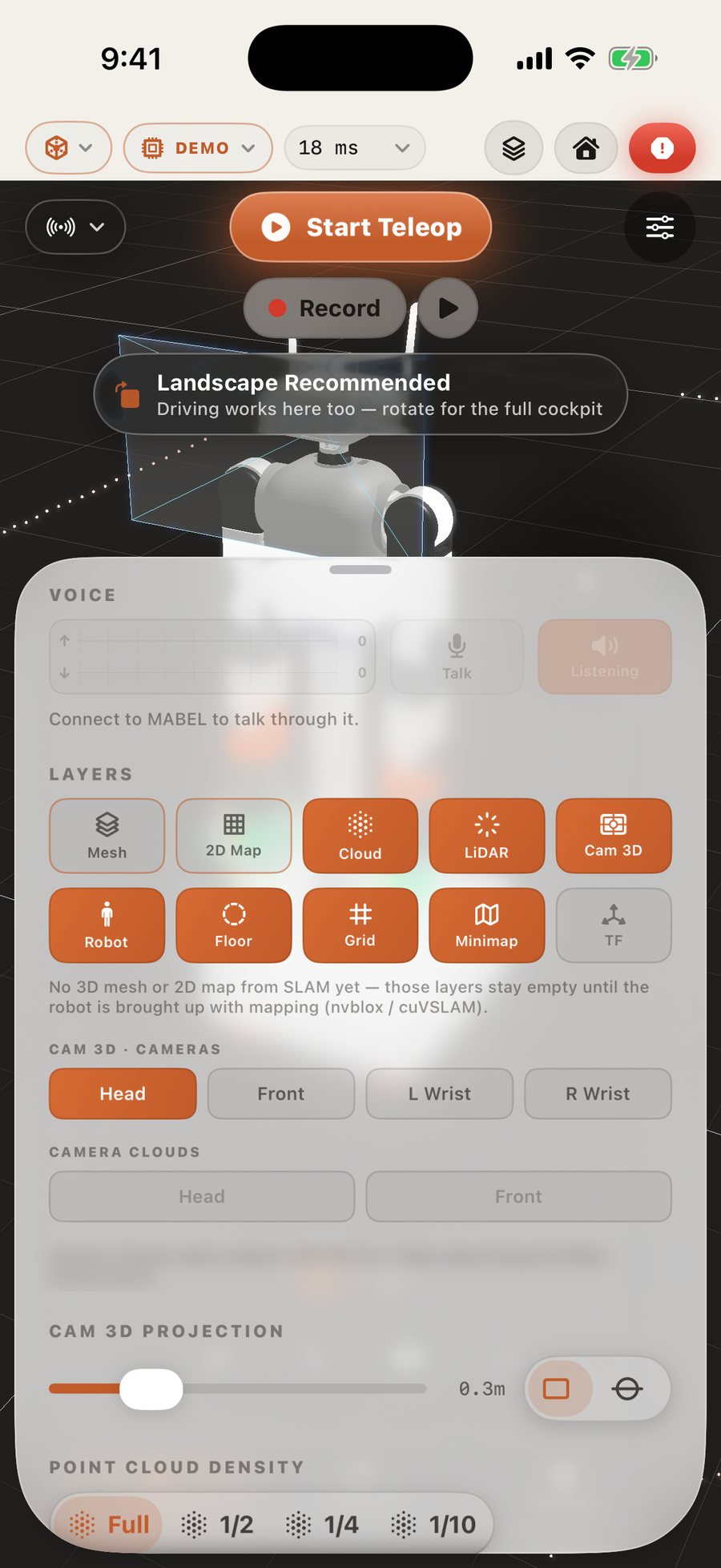
A glass sheet over the live twin, so the map never goes away.
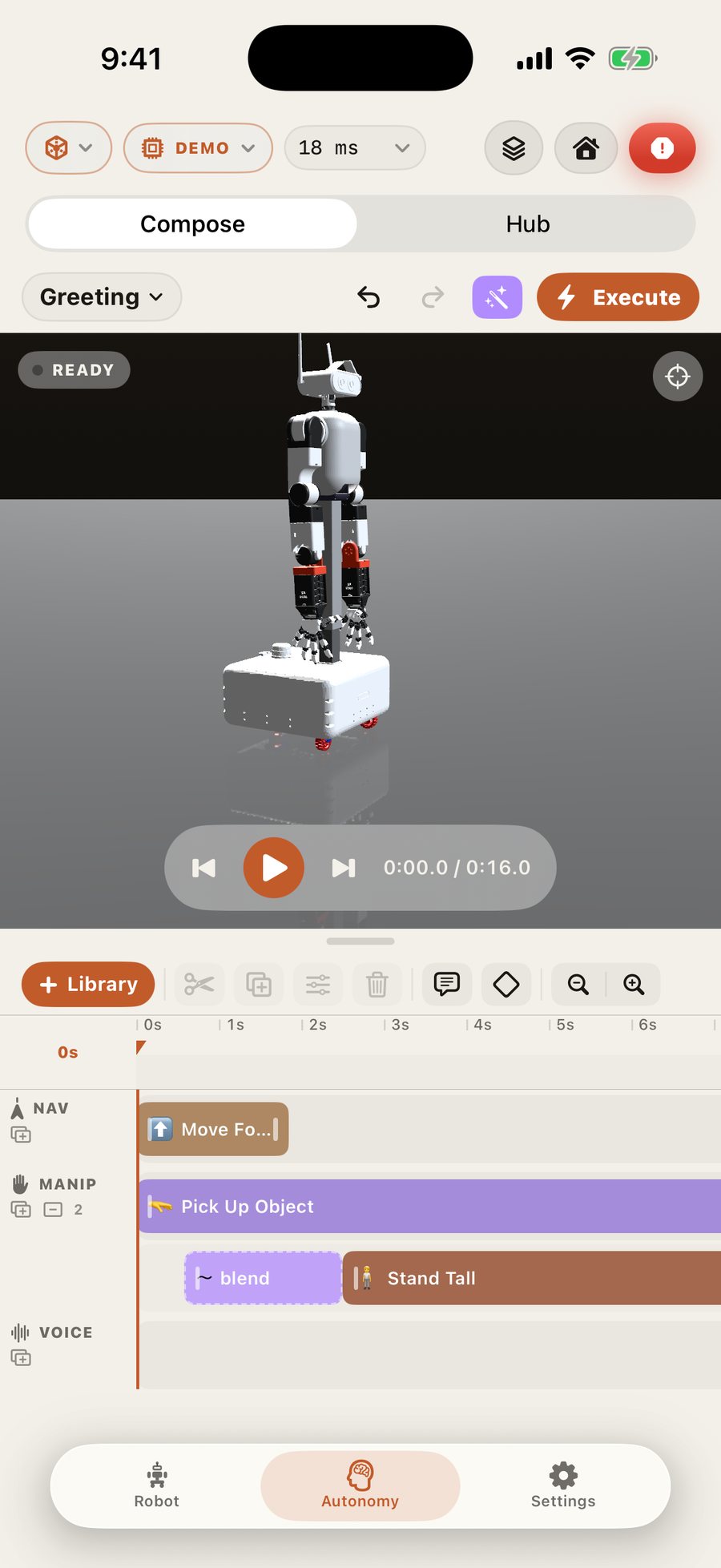
Clips on lanes, previewed on the twin, then run on the robot.
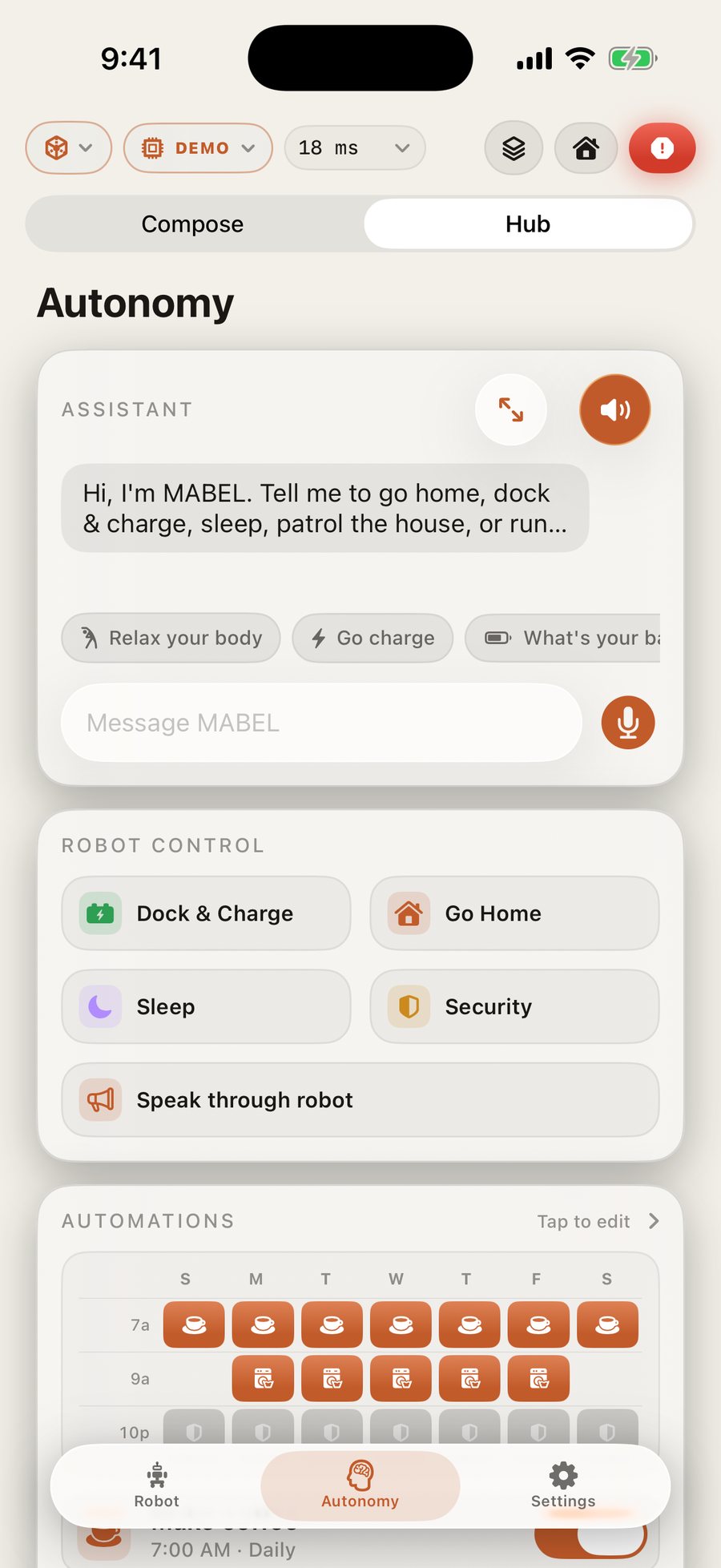
The assistant, one-tap routines, and a weekly schedule.
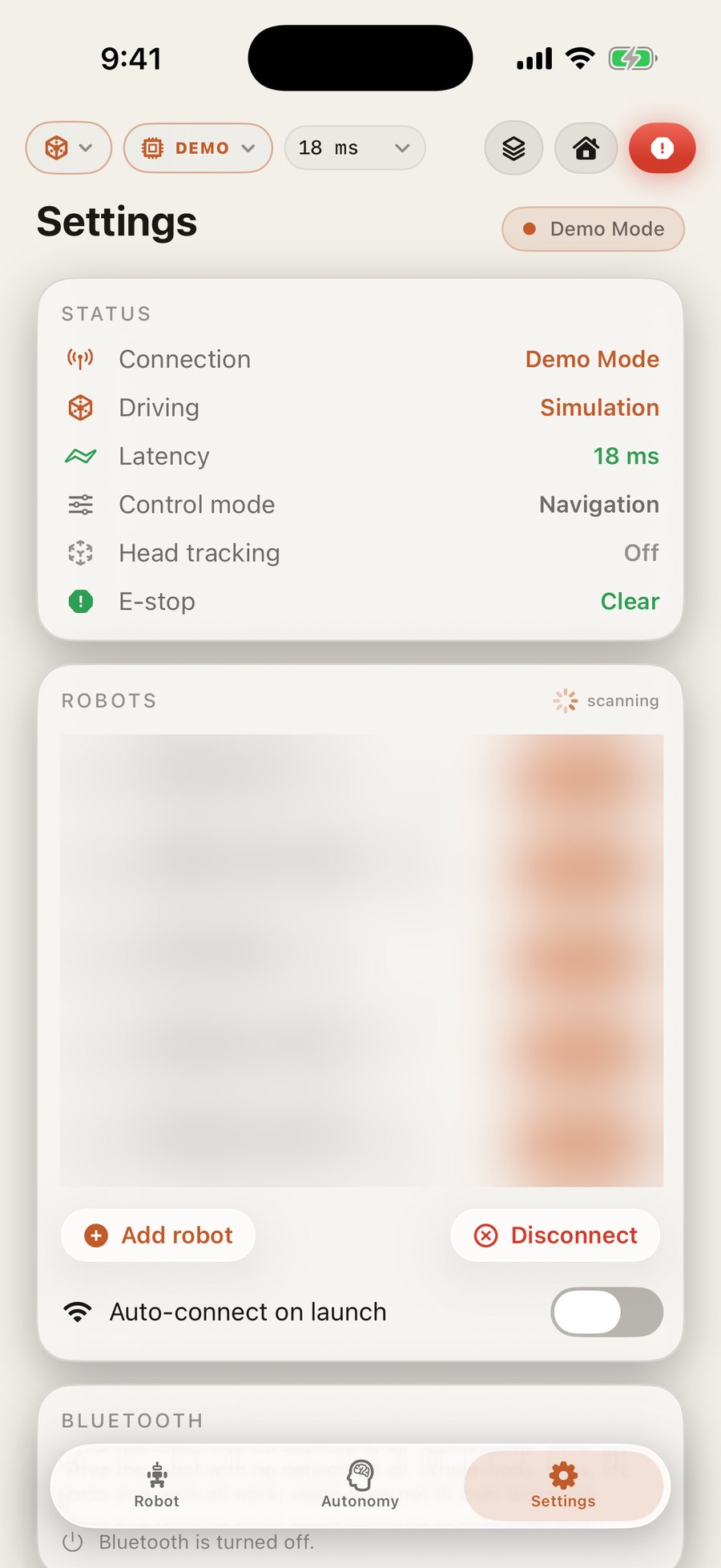
Connection, safety and limits, one card each.
Safety isn't a settings page you're trusted to read — it's the spine of the interface. Three promises hold on every screen, on both devices, whether you're an operator or a first-time guest.
A red STOP rides every screen and never scrolls away — one tap freezes all motion. Sleep the phone, lift the headset, or lose the link and the robot freezes itself: a heartbeat means it only moves while a human is actively holding on.
A speed dial scales everything from a crawl to full tilt. Hard speed caps live on the robot itself, every joint stops short of its mechanical limit, and letting go holds the pose under gravity comp — nothing springs back at you.
One driver holds the controls at a time; the robot must be explicitly armed to move; a stored access code gates every connection; and a live health panel flags a hot motor or a joint near its limit before it bites.
The operator can be on the other side of the planet. Pick a city: the budget is the great circle at fibre speed, the relay hops, and the measured on-robot pipeline — nothing hand-waved.
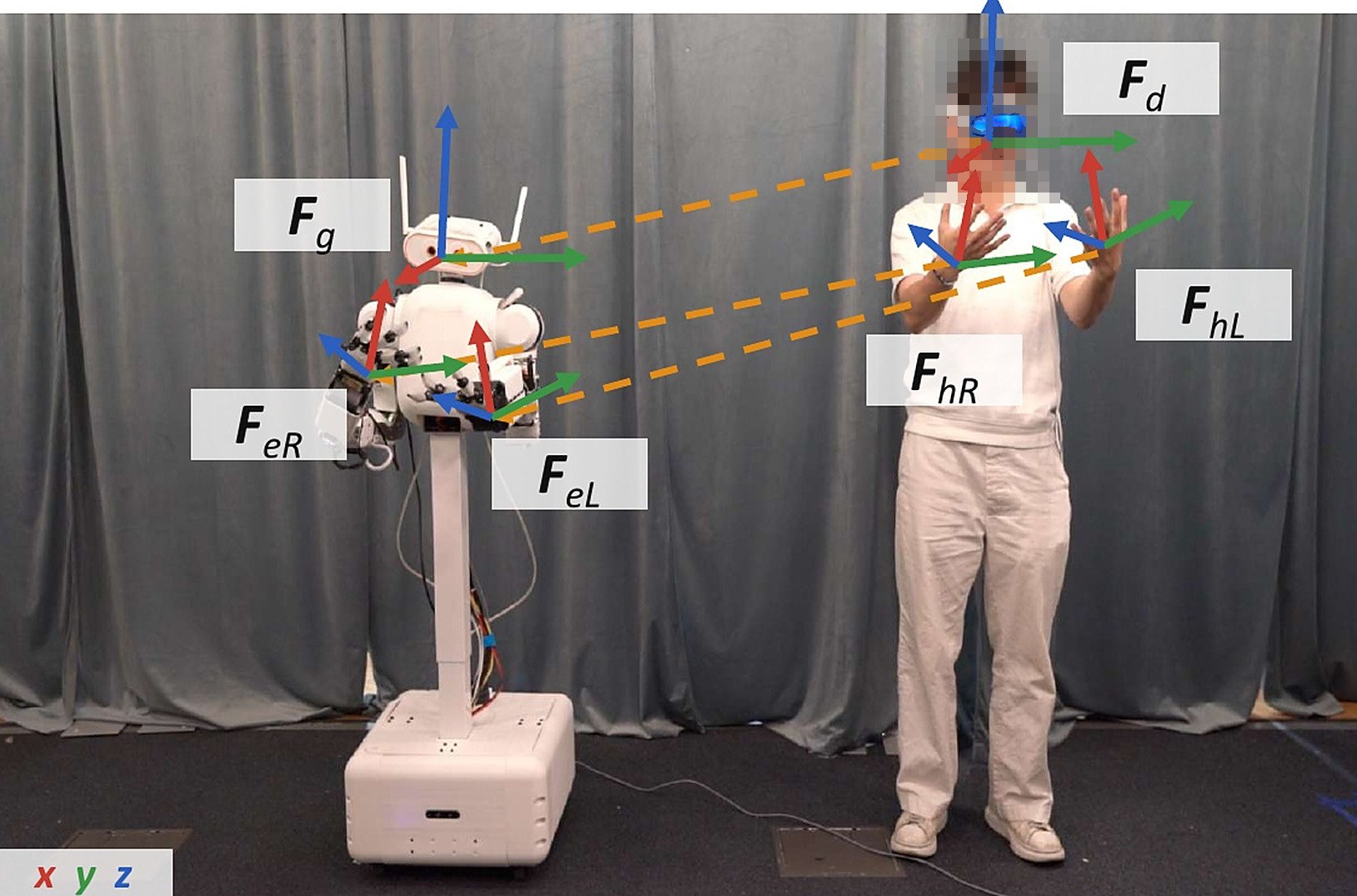
x = za y = ya z = −xa
so your left hand stays your leftThe one that bites: a palm frame built from anatomy is chirality-mirrored — palmar on the right hand, dorsal on the left. The robot's is palmar on both, so the left one is flipped first. Cost of forgetting, measured: 178.6°.
config.py.Which headset? The Apple Vision Pro runs the native visionOS app — ARKit head pose plus a 27-joint skeleton per hand, and it is simultaneously visualizer, controller, and demonstration recorder. Other headsets (a PICO, a Quest) drive MABEL through the zero-install browser client instead — same wire protocol, no app store. All retargeting runs server-side either way.